
Understanding your audience
Besides associating individual segment data to contacts in your ESP/CRM, RightMessage also gives you a birds eye view of your entire audience: who they are, what they’re doing, and what they need from you.
Questions cards
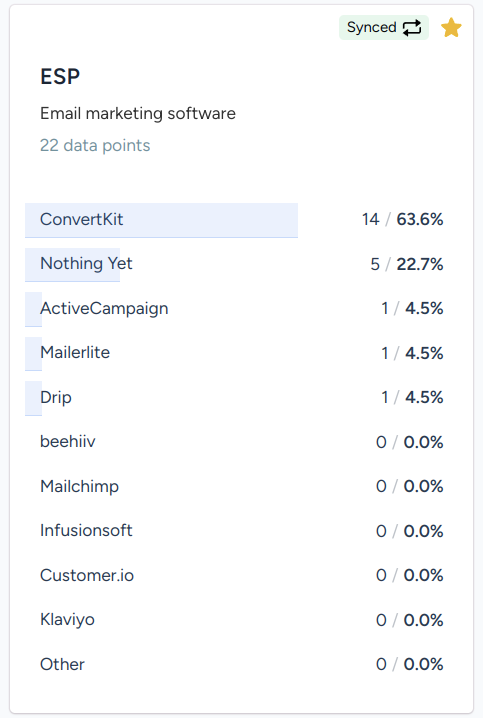
In the Questions menu, you’ll see a list of cards. Each card represents a Segment Group (don't forget a Question IS a Segment Group), and within each card is a meter showing the percent split of the segments within each group.
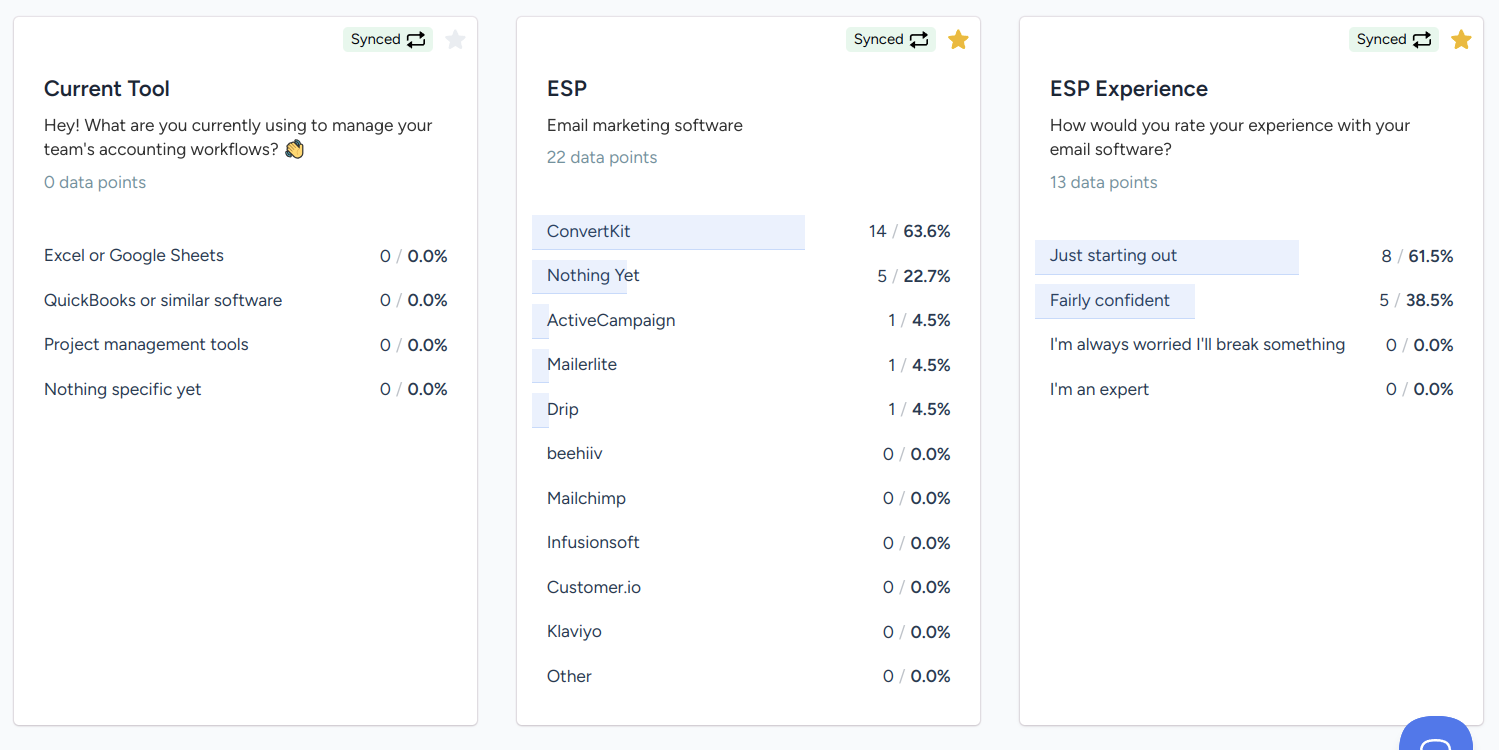
To the right of each segment meter is the percent of all matched Segment Group visitors that this segment represents.
Segment engagement
Each Segment Group card also shows engagement indicators next to each segment. An up arrow (↑) and a percentage tells you a segment is performing above your overall audience baseline. A down arrow (↓) tells you it is performing below.
Use the dropdown on the card to switch between three views:
Engagement shows pages per visitor for the segment vs. the rest of your audience.
Goal conversion pick a goal, and see which segments convert above or below average.
Offer conversion pick an offer, and see which segments accept it above or below average.
Segments without enough differentiated data simply do not show an indicator. Segments based on a sample of visitors are flagged as sampled, so you know the figure is an estimate rather than a precise count.
Use this view to spot the segments worth doubling down on (high lift, decent size), and to flag segments where your messaging or offers may be falling flat.