
Carrd
Adding RightMessage to your Carrd website lets you personalize content, display targeted widgets, and segment visitors based on their behavior. This guide walks you through installing the RightMessage tracking script on any Carrd site.
Before you start
You'll need:
Carrd Pro Standard or higher – The free Carrd plan doesn't support custom code embeds
A RightMessage account
Access to your Carrd site editor
Step 1: Copy your RightMessage snippet
First, grab your unique tracking script from RightMessage:
Log into your RightMessage dashboard
Click the Settings icon (gear icon) in the sidebar
Navigate to the JavaScript Snippet tab
Click the Copy button to copy the entire snippet to your clipboard
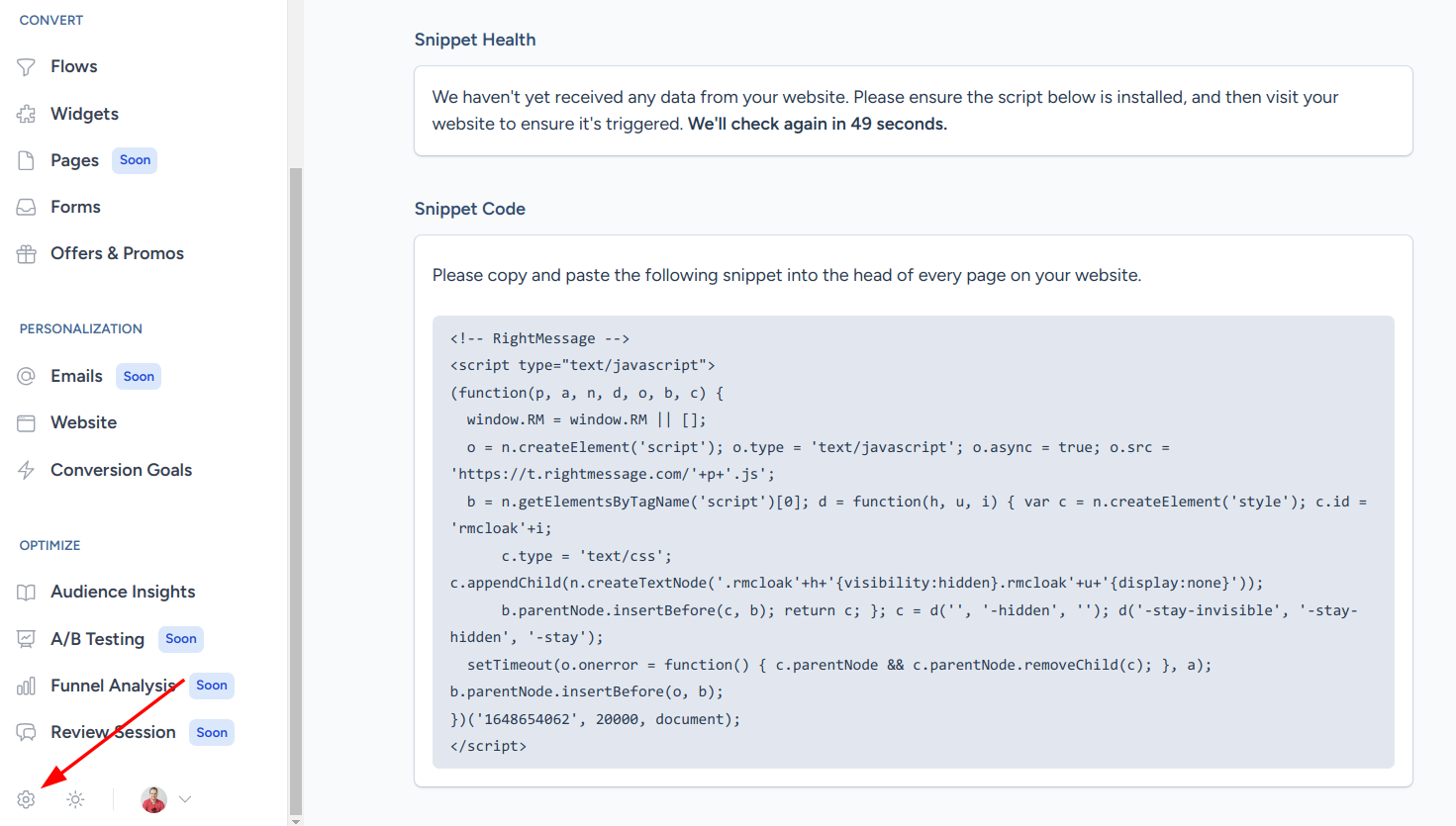
The snippet is unique to your RightMessage account. Keep it handy for the next step.
Step 2: Add the snippet to Carrd
Now paste the snippet into your Carrd site using the Embed element:
Open your Carrd site in the editor
Click the + Add Element button
Select Embed from the element options
Set Type to Code
Paste your RightMessage snippet into the code field
Add a label like "RightMessage Snippet" (optional, for your reference)
Set Style to Head – This loads the script in the page header and prevents content flicker
Click Done
Click Publish to push the changes live
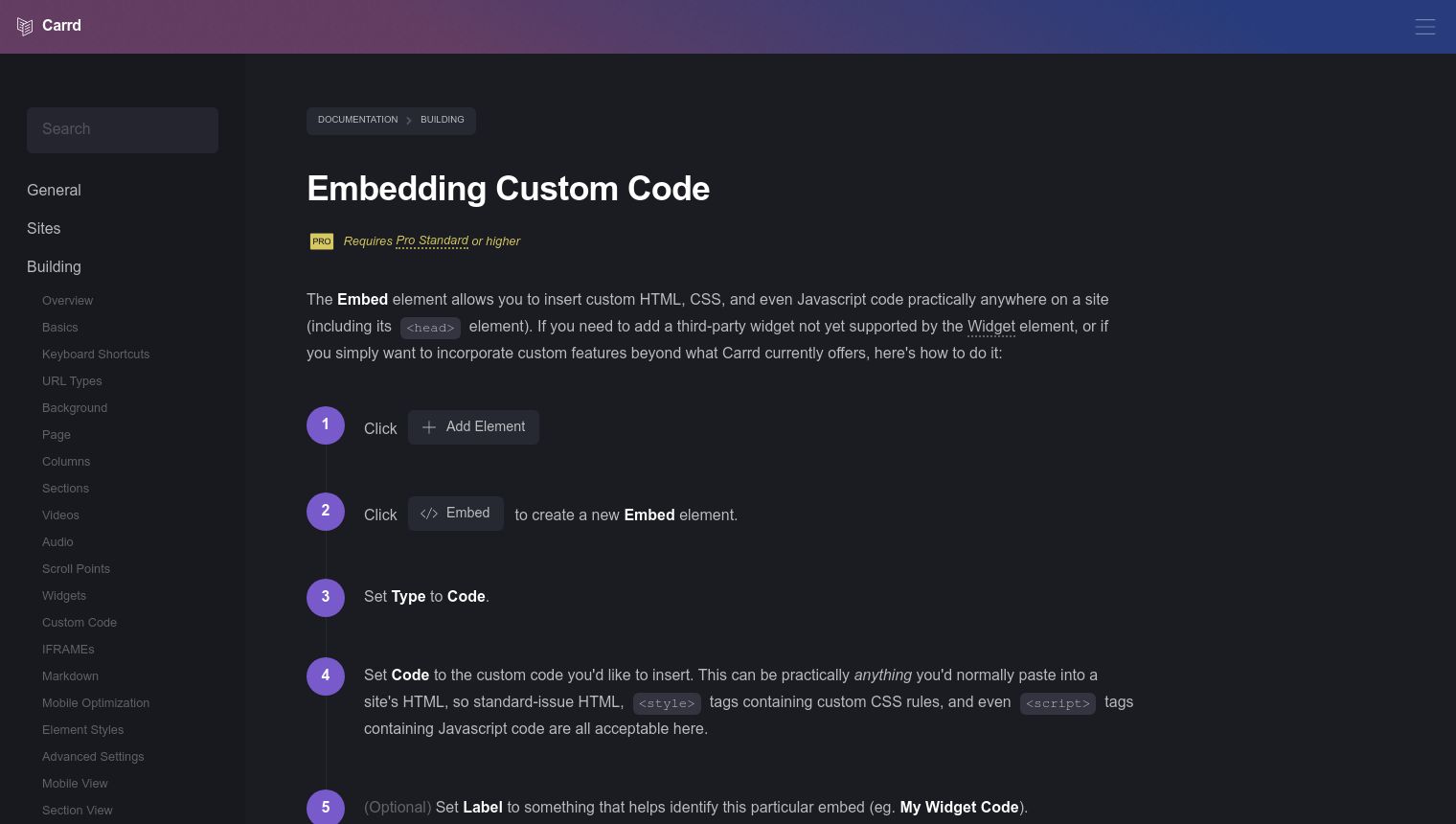
The snippet won't appear in Carrd's preview mode. You'll need to publish your site and visit it live to verify the installation.
Step 3: Verify the installation
After publishing, confirm RightMessage is tracking visitors:
Visit your live Carrd site in a new incognito/private browser window
Navigate around for a few seconds
Return to RightMessage Settings > JavaScript Snippet
Check the Snippet Health section – It should update to show "last sent data on [date/time]" within 1-2 minutes
Once Snippet Health shows recent activity, your installation is complete and RightMessage is tracking visitors.
Troubleshooting
If Snippet Health isn't showing data after a few minutes:
Republish your Carrd site – Changes only apply after publishing
Clear your browser cache or test in an incognito window
Disable ad blockers – They can block tracking scripts
Verify Head placement – The Embed element should use "Head" style, not "Inline" or "Hidden"
Check for JavaScript errors – Open your browser's developer console (F12) and look for errors
For additional help, see Common set up issues.