# Widget display and trigger reference
You'll find the settings for when your widget appears, who sees it, and what happens after someone answers or closes it.
Available on the Grow, Scale, and Pro plans.
Use **Display** to choose when visitors see your widget and whether it asks questions they've already answered. The attached flow still decides which path each visitor follows.
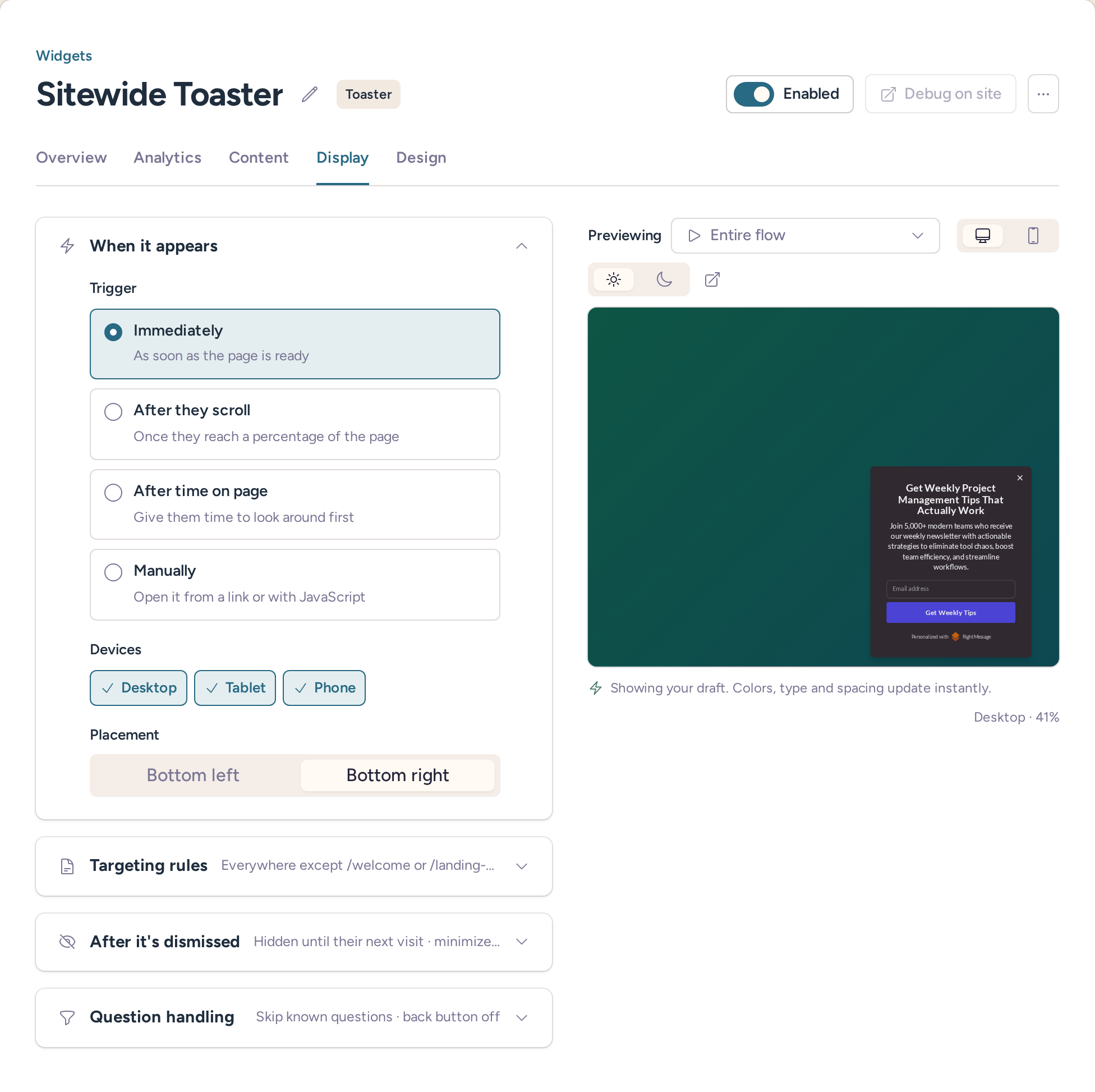
## When it appears
Floating widgets have **When it appears** settings. Inline widgets use [placement settings](#inline-placement) instead.
| Trigger | Available types | Behavior and settings |
| --------------------------------- | ----------------------------------------- | ------------------------------------------------------------------------------------------------------------------------------------------------------------------------------------------- |
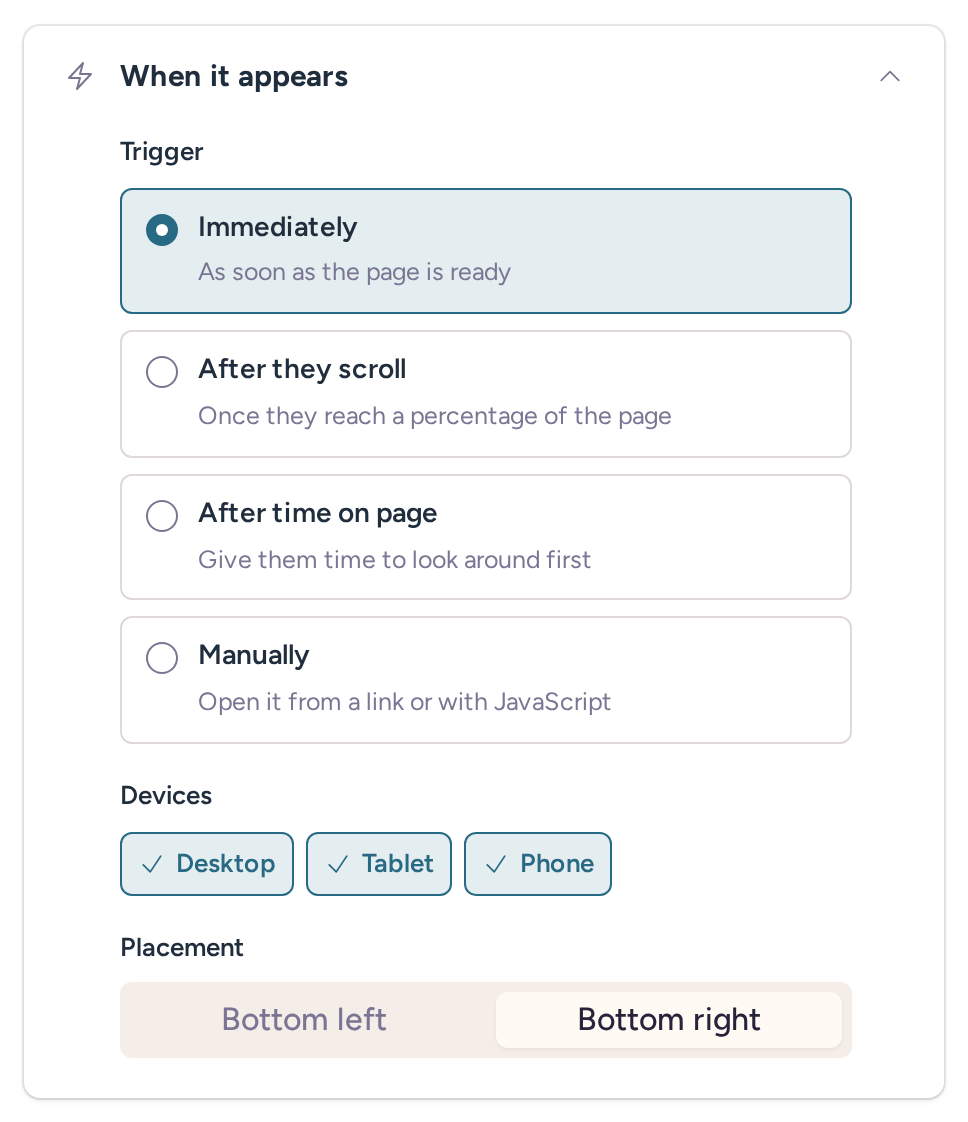
| **Immediately** | Popup, Toaster, Bar, Full-screen takeover | Starts when the page is ready. Default for new floating widgets. |
| **After they scroll** | Popup, Toaster, Bar, Full-screen takeover | Waits for a percentage of the scrollable distance. Starts at 50%. You can set 0 through 100. If the page is too short to scroll, the widget appears immediately. |
| **After time on page** | Popup, Toaster, Bar, Full-screen takeover | Waits a whole number of seconds after the trigger starts. The initial value is 5 and the minimum is 0. |
| **When they're about to leave** | Popup, Full-screen takeover | On desktop, reacts when the cursor moves toward or leaves the top of the page. On mobile, waits for 5 seconds without a tracked interaction after page load or the most recent interaction. |
| **After a form is submitted** | Popup only | Watches **All form submissions** or **Specific forms only**. Specific forms need a **CSS selector**, such as `#newsletter`. |
| **Manually** | Popup, Toaster, Bar, Full-screen takeover | Shows a fragment link and JavaScript command with the widget ID. See [Open a widget from a link or button](https://rightmessage.com/help/manually-triggering-widgets). |
| **Pinned to the top of the page** | Bar only | Appears immediately and pushes the page down. This is different from **Immediately**. |
The form selector identifies the form to watch, not a button that opens the widget. To open a widget on a click, use a manual trigger. A submission event doesn't confirm that an external provider accepted the form.
This trigger starts the form observer for that Popup. Installing the snippet alone doesn't start it. Captured email values can prefill the widget. See [Identify visitors automatically](https://rightmessage.com/help/identifying-visitors-automatically) for the separate identification settings.
### Devices and placement
**Desktop**, **Tablet**, and **Phone** each turn on or off independently. New widgets have all three enabled. These chips choose which devices can see the widget. The preview's **Desktop** and **Phone** buttons change the preview and any supported design overrides instead.
For a Bar, **Placement** offers **Top** or **Bottom**. For a Toaster, it offers **Bottom left** or **Bottom right**. New Bars use **Top** and new Toasters use **Bottom right**. Popups stay centered. Other types don't have this selector.
## Targeting rules
**Targeting rules** chooses the pages and visitors who can see a floating widget. Timing is separate. For example, [WorkForge](https://workforge.rightmessage.com) could show a **Toaster** on `/pricing.html` after someone spends five seconds there.
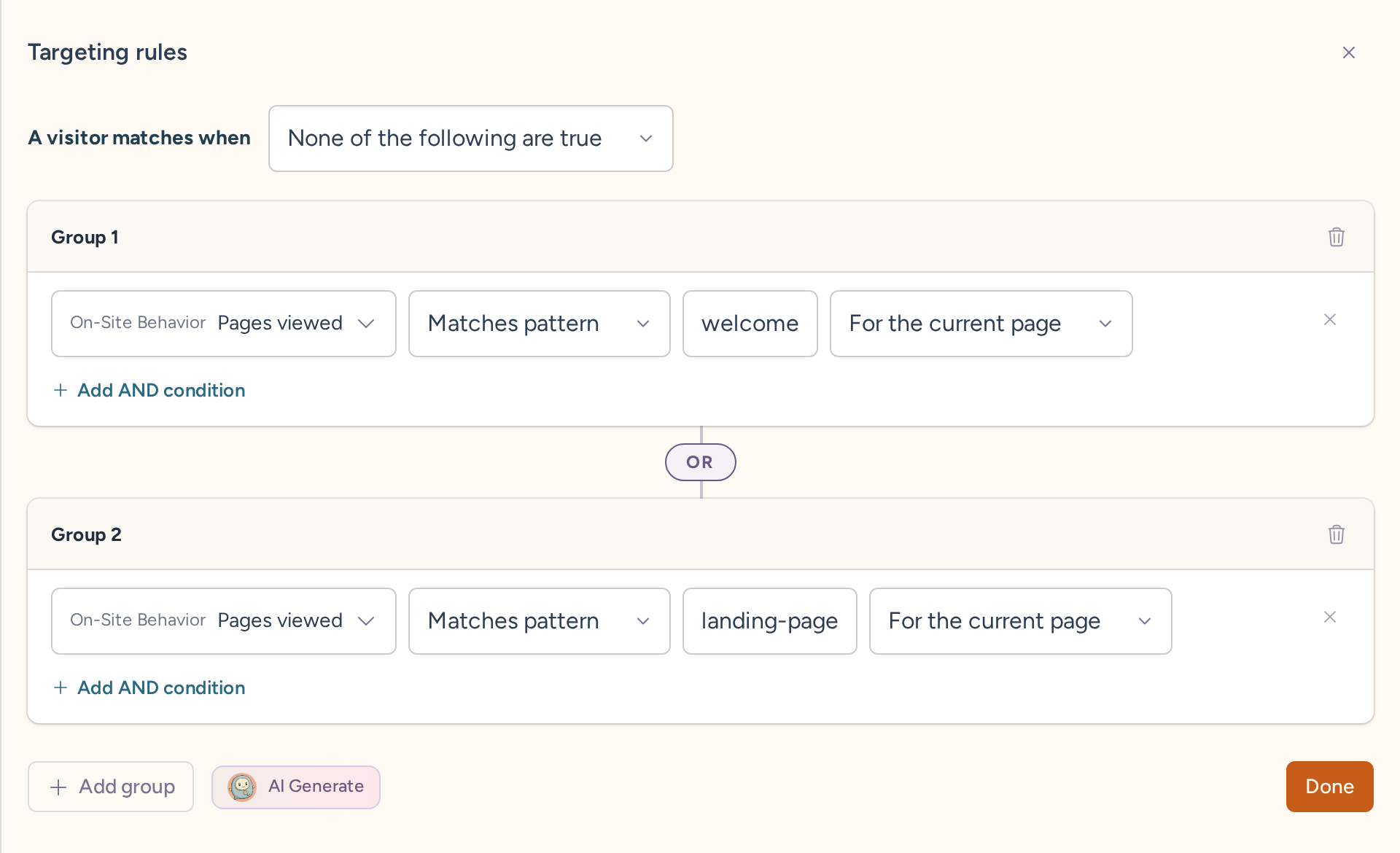
A new widget has no targeting restriction. A rule matching **No visitors** isn't the same as having no restriction. Domain, path, and query-string conditions match different parts of a URL. Keep a restriction on the current page separate from a rule about pages someone visited earlier.
**Manage conditions** opens the targeting editor. Choose **Done** to apply your conditions. You can use **All**, **Any**, or **None** matching. For sources and operators, see [segments and conditions](https://rightmessage.com/help/how-we-segment-your-visitors). Inline widgets don't show this card.
Knowing someone's answers isn't the same as knowing who they are. A visitor can answer a survey without becoming an identified contact. Skipping an answered question doesn't mean they're a subscriber. See [how visitor identification works](https://rightmessage.com/help/how-do-we-identify-returning-subscribers-or-contacts).
The flow can narrow what a visitor sees further. Even after the page matches and the trigger fires, the flow's conditions may send them somewhere other than an offer.
## After it's dismissed
This section appears for floating widgets. **Hide it** offers these choices.
| Choice | What happens |
| ---------------------------- | --------------------------------------------------------------------------------------------------- |
| **Until their next visit** | Keeps the widget dismissed for the browser session. |
| **For a set amount of time** | Uses a positive whole-number duration in **Minutes**, **Hours**, **Days**, or **Weeks**. |
| **Forever** | Keeps it dismissed in that browser's remembered state. Clearing browser data can remove that state. |
The initial dismissal choice is **Until their next visit**. Selecting a timed dismissal starts with 1 hour.
For a Toaster, **When they click close** offers **Dismiss right away** and **Minimize first**. **Minimize first** is the default. The first close collapses the Toaster instead of dismissing it. Dismissal history belongs to that browser, not every device the person uses.
Closing a manually triggered widget doesn't save the session, timed, or permanent dismissal history used by automatic widgets. Visitors can open it again from its trigger.
Inline widgets have no dismissal section. Removing a placement or changing a flow is different from a visitor closing a floating widget.
## Question handling
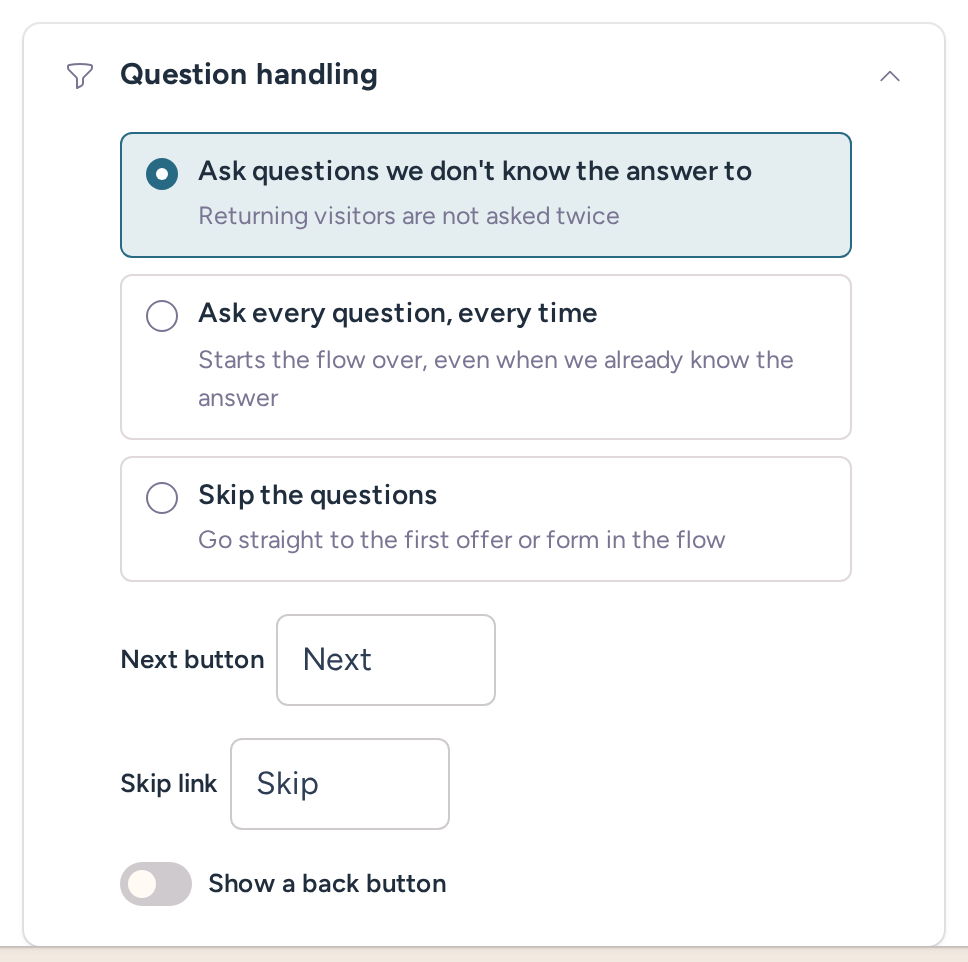
| Choice | Behavior |
| --------------------------------------------- | ---------------------------------------------------------------------------------------------------------------------------- |
| **Ask questions we don't know the answer to** | Skips questions with known answers so returning visitors can supply missing information. |
| **Ask every question, every time** | Asks again instead of skipping remembered answers. This is the new-widget default. |
| **Skip the questions** | Moves past questions to the first offer or form allowed by the flow's rules. It doesn't choose an offer outside those rules. |
Older widgets can keep their earlier question-frequency settings until you change this choice. Check the selected setting rather than assuming they use the new-widget default.
**Next button** defaults to `Next`. **Skip link** defaults to `Skip` and applies to optional questions. **Show a back button** is off initially. Turning it on exposes its **Label**. Its default wording is `← Go back`.
Design controls the appearance of these buttons. Display controls their labels and whether Back is available. See [Widget design settings reference](https://rightmessage.com/help/widget-design-reference).
## Preview and publication
The editor preview can start a flow as a new visitor or show a specific step. To try the targeting rules on your website, choose **Preview on your site** in the bottom bar. The debugger shows what RightMessage knows about you and what it's showing you.
Follow [testing your changes](https://rightmessage.com/help/best-practices-for-testing) to compare a fresh visitor with someone whose answers you already know. After publishing, check the page, trigger, dismissal, and final action together.
If the widget is missing or repeats unexpectedly, see [widget troubleshooting](https://rightmessage.com/help/troubleshoot-widget-display).
## Inline placement
Inline widgets have **Where it appears** instead of automatic triggers, dismissal controls, or device chips. Choose **Pick spots on your site** to select an existing element or **Paste embed code** to add a placeholder yourself.
### Placement spots
Each spot stores a domain, a path rule, a CSS selector, and **Above**, **Below**, or **Inside** placement.
| If you'd like to… | Setting |
| --------------------------------------------- | --------------------------------------------------------------------------- |
| Limit a spot to one hostname | Set its domain. Without a domain, it can match any project domain. |
| Match one page path | Use **Path is**. |
| Match a path prefix | Use **Pages under**. |
| Enter the placement without the visual picker | Use **Add manually**. A spot needs both a path and a selector. |
| Choose another element on the saved page | Use **Pick again**. It keeps the page and updates the element and position. |
| Remove a placement rule | Use **Remove spot**. It doesn't remove HTML you've pasted on your website. |
Use a stable selector such as `.article-body`. The editor warns about `:nth-child` selectors, which can change when a list changes.
One widget uses one matching picked spot per page. An exact path takes priority over a matching wildcard path. Otherwise, the first matching rule wins. The selector uses the first matching page element. To show the same widget more than once on a page, put its embed placeholder at each location.
### Embed code
Choose **Paste embed code**, enter a shortname, and copy the code into an HTML or custom-code block in your page builder. You'll need permission to edit the page's HTML. Save the page in your website editor.
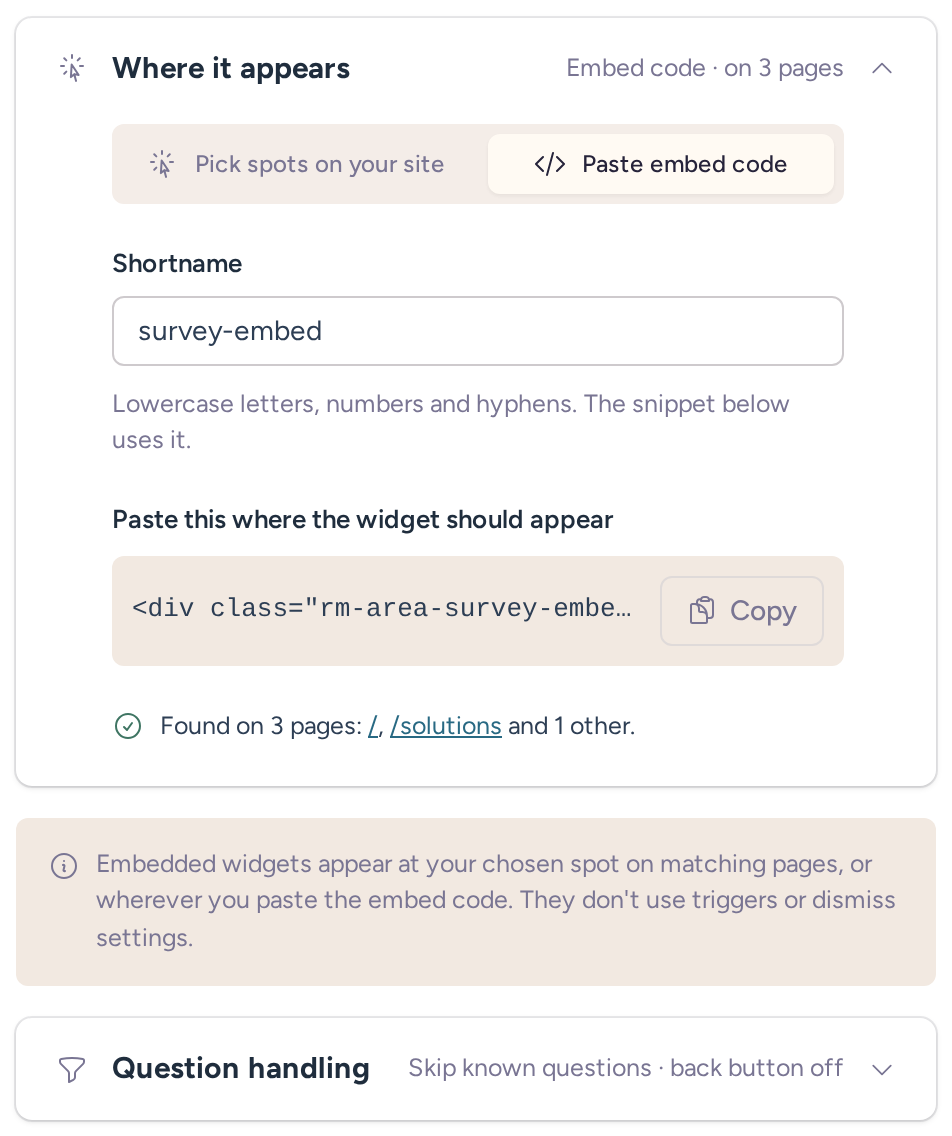
For the shortname `survey-embed`, the code is:
```html
```
The shortname connects the placeholder to your widget. If you change it, update every page using the old code. Duplicated inline widgets get a new shortname, so their code isn't interchangeable.
Shortnames use lowercase letters, numbers, and hyphens. The editor lowercases uppercase letters, replaces other characters with hyphens, and removes leading or trailing hyphens. An empty shortname doesn't produce usable code.
Switching placement methods doesn't erase the other method's settings. When a matching embed placeholder exists, RightMessage uses it instead of creating a placement anchor.
The editor can show discovered pages containing the embed. Discovery has loading and unavailable states. If a page is missing from that list, check the actual page and its snippet.
A correct placement still needs a flow with visible content for the visitor. See [Embed a widget](https://rightmessage.com/help/embed-a-widget) for setup.
## Manual trigger options
Choose **Manually** under **When it appears** to open a floating widget from your website's link, button, or JavaScript. The editor shows the fragment link and JavaScript command. Use your own widget ID instead of the illustrative `wdg_12345678`.
For a link, set its destination to the fragment:
```html
Get the playbook
```
If your page builder supports custom attributes, add `data-rm-show`:
```html
```
If it supports CSS classes instead, use `rm-show-` followed by the widget ID:
```html
```
The attribute and class identify the widget. They don't style the button, so keep your website's normal button styling.
For a programmatic trigger, put the editor's command in your existing click handler:
```javascript
window.RM = window.RM || [];
window.RM.push(['trigger', 'wdg_12345678']);
```
The project snippet must run on the page. A manual trigger isn't a security control for private content. See [Open a widget from a link or button](https://rightmessage.com/help/manually-triggering-widgets) for setup and testing.